

Thermal Sensor User Guide V 1.0

What is the Thermal Sensor?
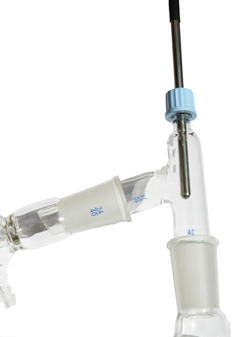
The DI-Thermal Series by Dexter Industries is a line of temperature sensors compatible with the Lego NXT Mindstorms system. The sensors offer an operating range of -50°C to 150°C.
The thermal sensors provide an analog signal, which is read by the NXT hardware. The sensor can be used with NXT-G and Labview software, provided on the Dexter Industries website.
The Protected Thermal Sensor is has a stainless steel protective probe which can be used in water, organic solutions, and most acids and bases.
The Open Thermal Sensor can be used to measure the temperature of dry surfaces, glassware, and gases. The Open Thermal Sensor should NOT be used in liquids.
Using NXT-G
 To use the thermal sensor, simply plug the male plug of the sensor into the NXT. Secure the sensor to a surface, or submerge the Protected Thermal Sensor in liquid. The Protected Thermal Sensor protective tube is ¼”, and can fit in most standard compressive glassware seals.
Download the Thermal Sensor brick here. Save and unzip the file into a
directory titled “Thermal Sensor”. Import the brick into Mindstorms NXT on your computer. The Brick drags and drops onto the screen and shows data ports for Celsius and Fahrenheit. The fully-expanded brick can be seen to the right.
Configure the sensor’s port to 1, 2, 3, or 4. The blocks control is shown below.
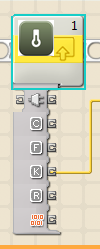

Clicking on the drop down menu below the block reveals Kelvin, Rankine, and raw data outputs. Wire the selected data output to its destination. Multiple data outputs can be wired at the same time: a user can call data in all five formats at once.
Below is an example NXT-G program that displays temperature data in both Fahrenheit and Celsius.

Labview
Download the Thermal Sensor VI here. The file is titled “DI_Temp_VI.vi” Save into a directory on your hard drive. The VI can be imported by right clicking on the Labview program Block Diagram, and selecting “Select a VI” as shown below.

Select the directory where the VI was stored, and open the VI, placing it on the Block Diagram. The VI will look like the diagram below. The terminals are labeled.